Nano Banana Workflows: Generation, Editing & Blending
Learn the three main workflows: pure generation, photo editing, and multi-image blending. Understand effort, complexity, and best use cases for each type.
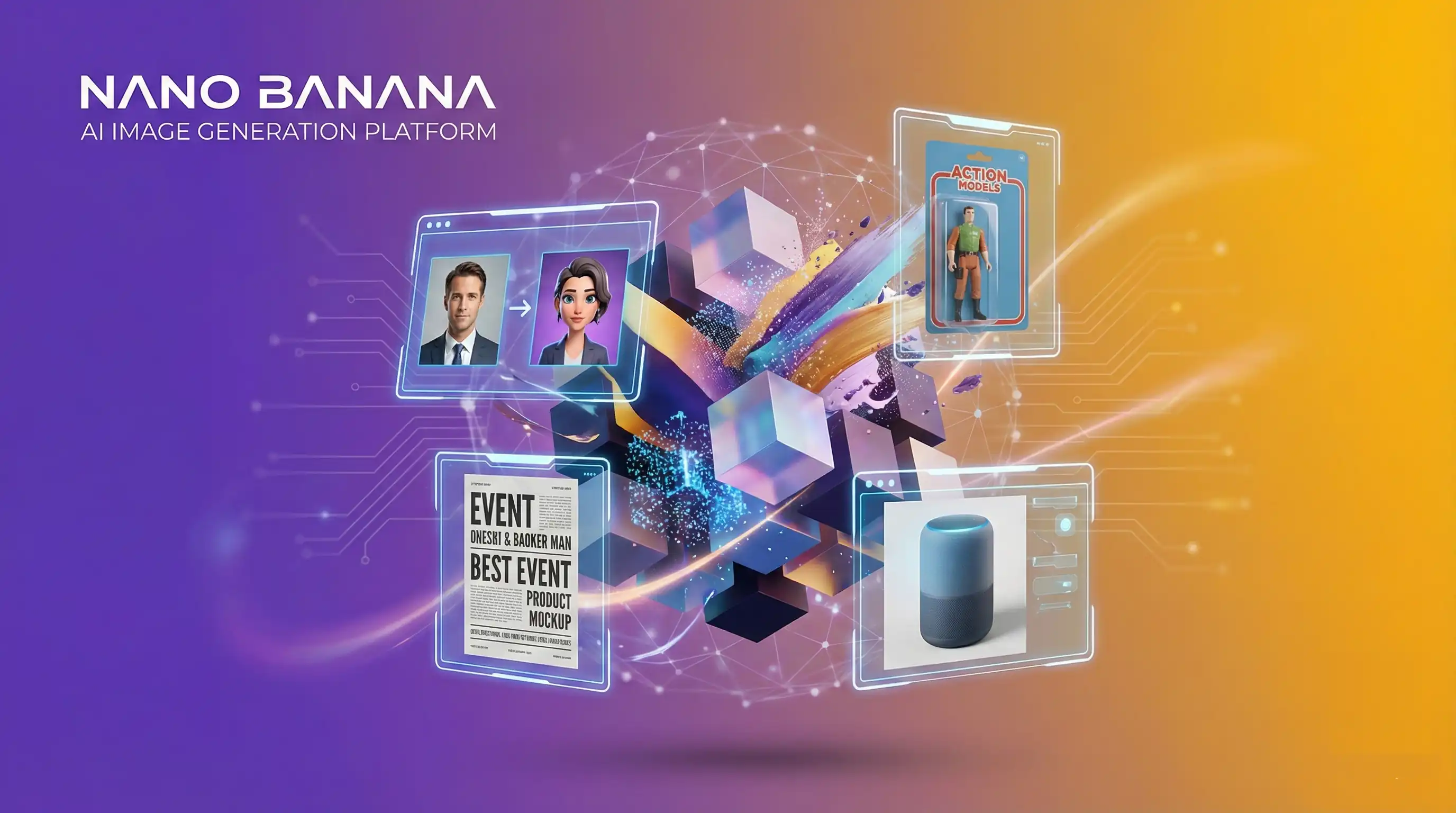
Nano Banana supports three primary workflows. Understanding each helps you choose the right approach for your project.
1. Pure Generation: Creating from Scratch
What it is: You describe an image in text, and Nano Banana creates it entirely from your description. This uses the model's reasoning phase to plan the composition.
When to use:
- Creating product mockups with text
- Generating marketing posters or promotional graphics
- Designing infographics or diagrams
- Visualizing concepts or ideas that don't exist in photos
- Creating illustrations or stylized artwork
Workflow Steps
Write Prompt
Write a clear, specific prompt describing what you want. Use the 4-part framework for best results.
Generate
Nano Banana generates a 1024×1024 image based on your description.
Review
Review the result. It might not be perfect on the first try.
Refine
Conversationally refine through adjustments ("make it darker," "add more detail").
Export
Export the image when you are satisfied with the result.
Effort Level: Low → Medium
- Initial prompt: Moderate effort (need to be specific and detailed)
- Iterations: Usually 2-5 refinements through conversation
- Typical time: 5-10 minutes for a final result
Best Practices
Note:
Pro Tip: Don't ask for multiple variations at once. Nano Banana works best when you iterate on a single concept conversationally.
Do:
- Be specific about subject, style, and composition
- Include context about intended use (LinkedIn, print, website, etc.)
- Describe lighting and mood
- Mention technical details if relevant (text placement, colors)
Don't:
- Use vague adjectives ("beautiful," "cool," "nice")
- Try to be too detailed about things you want the model to decide
- Assume the model knows recent trends without describing them
- Ask for multiple variations at once
Example Prompt
Create a professional LinkedIn headshot mockup of a woman in her 30s
wearing a navy blazer and white blouse, soft gray background with subtle
shadows, warm studio lighting, magazine-quality photography, suitable for
corporate website
2. Image Editing: Transforming Existing Photos
What it is: Upload your own photo and ask for conversational edits. Nano Banana modifies it while preserving the original's core.
When to use:
- Enhancing professional headshots
- Changing backgrounds in photos
- Modifying lighting or atmosphere
- Adjusting clothing, accessories, or styling
- Removing or adding objects
- Creating variations of existing photos
- Professional enhancement and retouching
Workflow Steps
Upload Photo
Upload your photo to the chat interface.
Request Edit
Write a clear edit request ("change the background to a professional studio").
Apply Edits
Nano Banana applies the edits while trying to preserve the original subject.
Review
Review the result to see if the edit matches your vision.
Refine
Ask for refinements naturally ("make the lighting warmer," "adjust the background").
Export
Export the final edited image.
Effort Level: Very Low
- Photo upload: 1 minute
- Initial request: 1-2 minutes (just describe what to change)
- Iterations: Usually 1-3 refinements
- Typical time: 5-15 minutes total
Best Practices
Do:
- Use clear, high-quality source photos
- Specify what to preserve ("Keep my expression and pose")
- Reference the current state ("The lighting is too harsh")
- Ask for natural, incremental changes
Don't:
- Upload low-resolution images
- Make contradictory requests
- Try to completely transform the person/subject
- Expect perfection—you may need post-processing for precision
Example Request
Change the background to a clean white studio. Keep my expression and pose
exactly the same. Professional headshot style.
3. Multi-Image Blending: Combining Photos
What it is: Upload 2-3 separate images plus a text description to blend them into one cohesive composition.
When to use:
- Placing yourself into vacation photos
- Blending multiple people into one portrait
- Creating photo composites
- Combining different locations or scenes
- Family photos with people from different shoots
- Artistic photo compositions
Workflow Steps
Select Images
Choose 2-3 images to blend (typically one person/subject + background + optional third image).
Describe Composition
Write a description of the desired final composition, explaining how the images relate.
Blend
Nano Banana blends them maintaining coherence in lighting and perspective.
Review
Review the composite image.
Refine
Ask for adjustments if the blend isn't seamless or the positioning is off.
Export
Export the final composite.
Effort Level: Medium
- Image preparation: 2-5 minutes (choosing and uploading)
- Composition description: 2 minutes
- Iterations: Usually 1-2 refinements
- Typical time: 10-20 minutes total
Best Practices
Do:
- Use high-quality source images
- Describe how images should interact ("Person in foreground, vacation backdrop behind")
- Specify lighting consistency ("Warm sunset lighting across all elements")
- Mention perspective and positioning ("looking at the scenic view")
Don't:
- Upload very different quality levels (mix of professional + phone photos)
- Try to blend more than 3 images
- Use extremely different lighting conditions
- Expect pixel-perfect alignment without refinement
Example Request
Blend these three photos: my portrait, my friend's portrait, and a beach
sunset backdrop. We should both be standing on the beach in the foreground,
looking at the sunset together. Consistent warm lighting and natural
expressions. Single cohesive photo.
Quick Comparison
| Aspect | Generation | Editing | Blending |
|---|---|---|---|
| Inputs Needed | Text only | Photo + text | 2-3 photos + text |
| Complexity | Medium | Low | Medium |
| Typical Time | 5-10 min | 5-15 min | 10-20 min |
| Best For | Creating new designs | Enhancing photos | Combining images |
| Revision Cycles | 2-5 | 1-3 | 1-2 |
| Effort Level | Moderate | Very Low | Moderate |
| Expertise Needed | Prompting skill | Photography sense | Composition sense |
Choosing Your Workflow
Ask yourself:
Do you have existing photos?
- Yes, one → Use Editing
- Yes, multiple (2-3) → Use Blending
- No → Use Generation
What's your main goal?
- Create something new → Generation
- Improve/transform existing photo → Editing
- Combine multiple photos → Blending
How much refinement can you do?
- High tolerance for iteration → Generation (most refinement cycles)
- Need results quickly → Editing (fastest workflow)
- Moderate refinement needed → Blending
Ready to start? Explore each workflow in depth through the Prompting Guide and see real examples.
Related Articles & Guides
 #nano-banana
Character Design with Nano Banana: Generation Guide
Create original characters, mascots, and concept art from scratch using Nano Banana's text-to-image generation capabilities.
 #nano-banana
Background Modification Prompts: Nano Banana Guide
Swap messy backgrounds for professional settings with Nano Banana. Master context control and subject isolation.
 #chatgpt
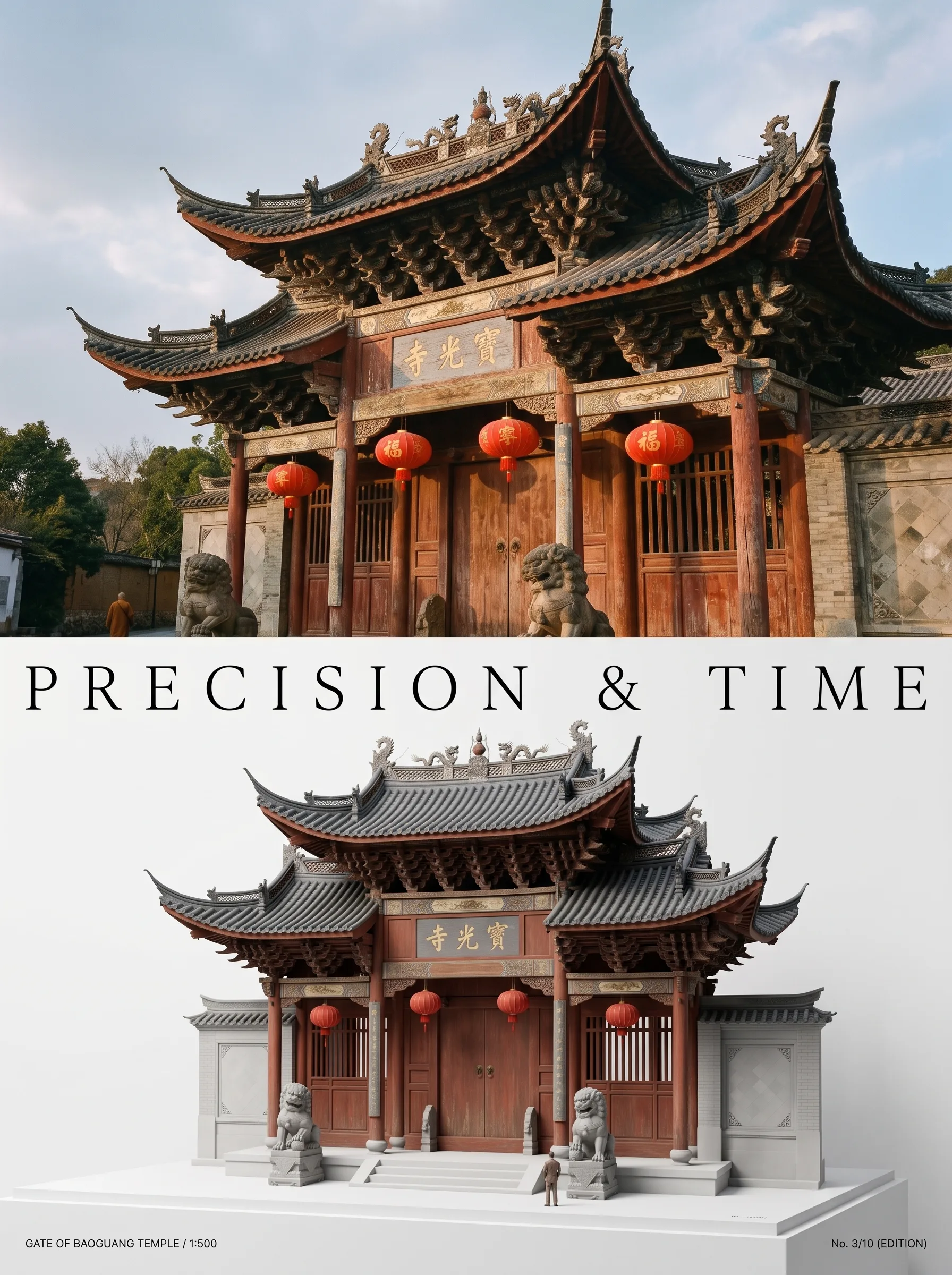
Photo to Architectural Model Poster
Turn any photo of a building into a dual-zone editorial poster: full photo on top, photoreal miniature museum model below. The precision prompt that avoids cartoon renders, tested on 6 building types.