Prototype Visualization Prompts: From Sketch to Render
Turn rough sketches into realistic 3D renders and visualize prototypes with Nano Banana. Accelerate your industrial design workflow.

The gap between a napkin sketch and a final product is usually weeks of 3D modeling. Nano Banana closes that gap instantly. By uploading a sketch and describing the materials, you can see a photorealistic version of your idea in seconds.
Understanding Sketch-to-Render
This workflow relies heavily on Image-to-Image (using your sketch as an input). The prompt then acts as a "material mapper," telling the AI that this line is chrome and that line is plastic.
SKETCH TO PRODUCT
Let's start with the foundation example from the Product Visualization overview. Here is the complete, fully detailed prompt to generate the "SKETCH TO PRODUCT" render.
[Input Image: Rough pencil sketch of a toaster] Turn this sketch into a realistic product photo. Design Language: - **Style**: Retro-futuristic (Smeg meets Cyberpunk) - **Form**: Rounded corners, bulky silhouette (following sketch) Materials: - **Body**: Powder-coated pastel blue metal - **Dials**: Polished chrome - **Handle**: Bakelite black plastic - **Texture**: Subtle orange-peel paint texture Context: - **Setting**: White granite kitchen counter - **Lighting**: Bright morning sunlight (hard shadows) - **Props**: Slices of toast, glass of orange juice
Why This Works
The "Powder-Coated" Specificity: "Blue metal" could look like anything. "Powder-coated" tells the AI exactly how the light should hit the surface (diffused reflection, slight texture).
The "Following Sketch" Instruction: Explicitly telling the AI to "follow sketch form" helps it understand that the input image is a structural guide, not just a style reference.
The "Bakelite" Detail: Using specific material names like "Bakelite" (an early plastic) reinforces the "Retro" vibe defined in the style section.
Common Mistakes
Note:
Messy Sketches: If your sketch is too messy (lots of scratchy lines), the AI might interpret those lines as cracks or dirt. Clean up your sketch with a black marker or digital ink before uploading for best results.
Variations on "SKETCH TO PRODUCT"
Apply this workflow to different industries.
The Block-out to Sneaker
From 3D shape to finished shoe.
[Input Image: Grey 3D block model] Render this shape as a high-performance running shoe.

- **Upper**: Breathable engineered mesh in neon orange
- **Sole**: White EVA foam with black rubber tread
- **Laces**: Reflective grey rope laces
- **Branding**: TPU plastic side panel
- **Background**: Running track surface
What Changed: We used "engineered mesh" and "EVA foam" to define the complex materials of athletic wear.
The Concept Car
From line drawing to automotive design.
[Input Image: Car side profile sketch] Visualize this as a futuristic electric vehicle.

- **Paint**: Metallic liquid silver
- **Glass**: Tinted privacy glass
- **Lights**: Thin LED strips (Cyberpunk style)
- **Wheels**: Aerodynamic carbon fiber alloys
- **Environment**: Wet city street at night (neon reflections)
What Changed: We focused on "metallic paint" and "reflections," which are critical for car rendering.
Expanding Your Prototyping
Visualize architecture and fashion.
The Architectural Sketch
From doodle to building.
[Input Image: Building outline] Render this as a modern architectural visualization.

- **Facade**: Glass curtain wall and vertical wood slats
- **Structure**: Exposed concrete columns
- **Environment**: Lush green park with people walking
- **Time**: Golden hour sunset
- **Style**: Sustainable modernism
The Fashion Illustration
From croquis to garment.
[Input Image: Dress sketch] Turn this illustration into a realistic fashion photo.

- **Fabric**: Iridescent silk chiffon
- **Drape**: Flowing, wind-blown
- **Details**: Intricate beadwork on bodice
- **Model**: Professional fashion model
- **Lighting**: High-fashion runway lighting
Troubleshooting
Next Steps
Related Articles & Guides
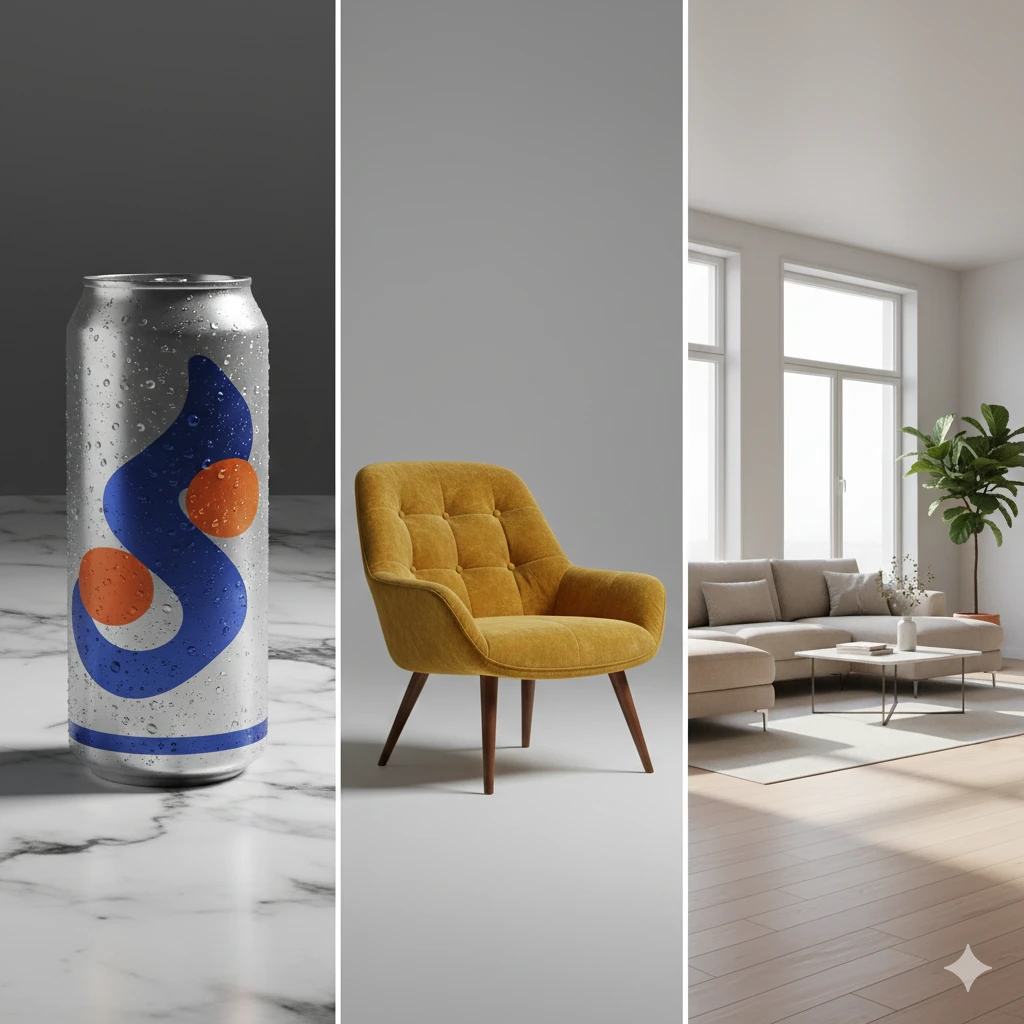 #nano-banana
Product Visualization with Nano Banana: Design & Rendering
Visualize interior designs, product mockups, and prototypes with Nano Banana. Create professional product photography and design renderings with AI.
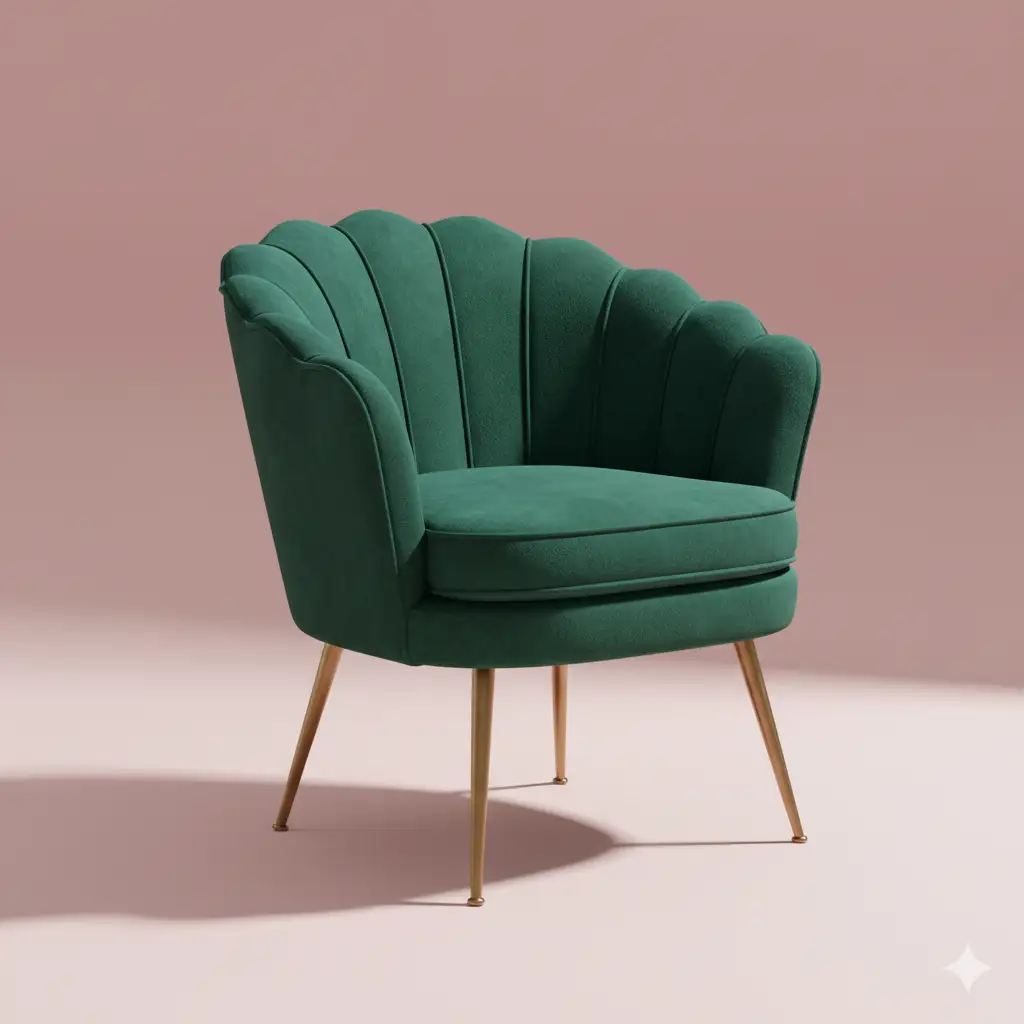 #nano-banana
Furniture & Decor Prompts: Custom Design
Design custom furniture pieces and home decor items with Nano Banana. Visualize unique concepts for manufacturing or inspiration.
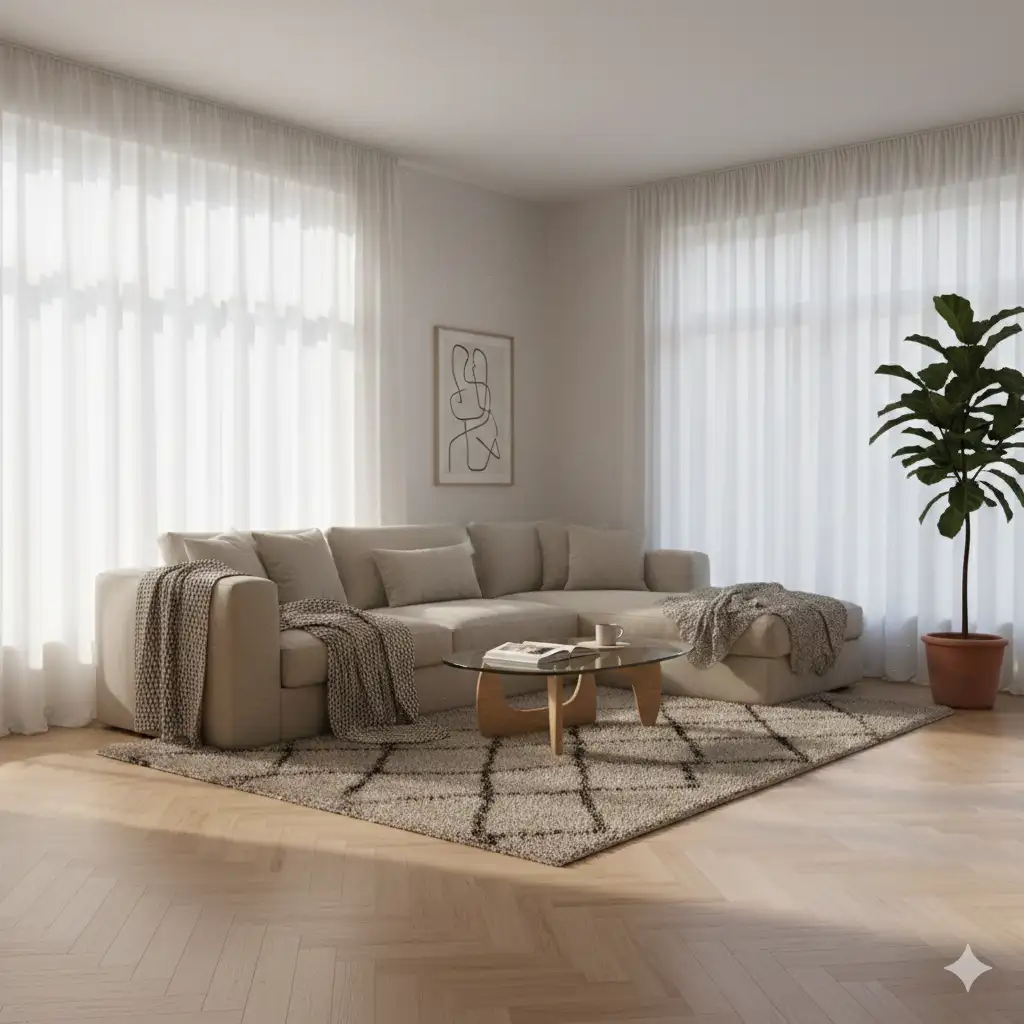 #nano-banana
Interior Design Prompts: Room Visualization
Visualize room layouts, furniture styles, and decor themes with Nano Banana. Create photorealistic interior renders.